







Ableton Live - How to load a Drum Map with MIDI note names (pitch names)
Why even use a drum map?
When you open a MIDI event with the MIDI editor in Ableton Live, you will see the piano roll on the left side. The C keys and their octaves are all labeled, which is sufficient if you just have to deal with melodic MIDI events. But as soon as you want to edit or create drum grooves, only seeing the keys and notes is not very convenient. That is why some DAWs like Studio One support loading up external drum maps which will display every single drum name like Kick, Snare, Hi-Hat etc... instead of the piano roll (see right image).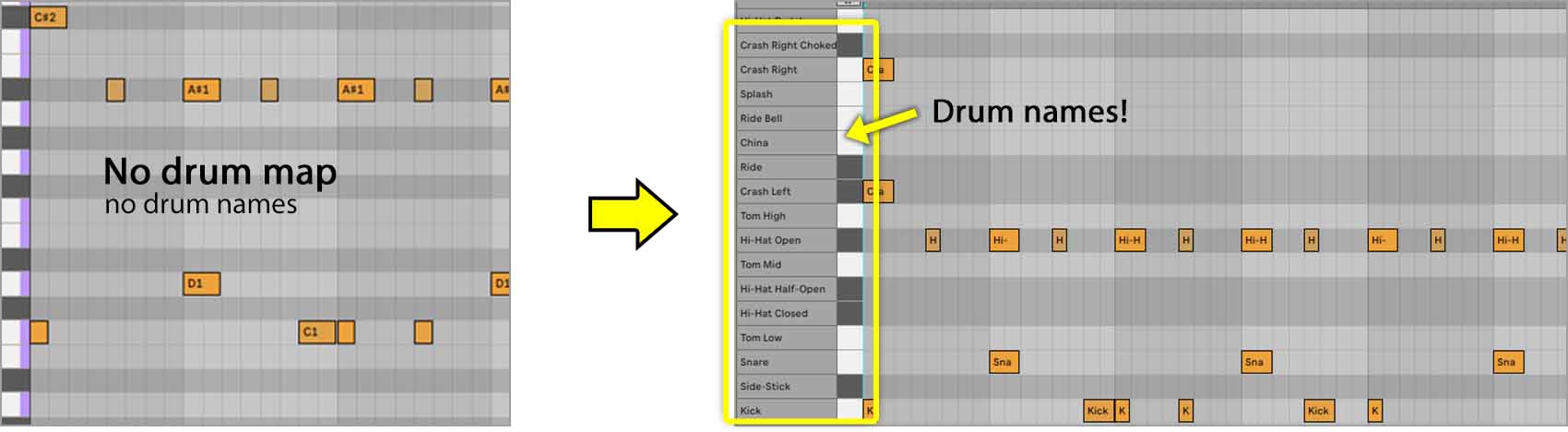
This obviously makes drum programming much more convenient since you are going to actually see which drums you are about to draw into the MIDI editor. The guessing game will be over.
Please note that you need at least Ableton Live Version 12.3 for this drum map file to work.
Step 1
Download the followig zip file and extract the drum map to any temporary location on your drive.
Step 2
Move the drum map file to the location below.
Windows:
C:\Users\[your user name]\Documents\Ableton\User Library\Presets\MIDI Effects\MIDI Effect Rack\
Mac:
~/Users/[your user name]/Music/Ableton/User Library/Presets/MIDI Effects/MIDI Effect Rack/
Please note that this drum map file only works with Ableton Live. Other DAWs like Cubase and Reaper have their own drum map file format. You can find drum maps and instructions for these DAWs within the Presets section of this website as well.
Step 3
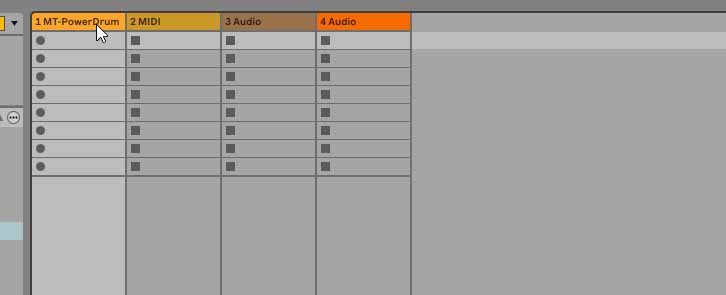
In Ableton Live select the track where the plugin is already loaded on.
Step 4
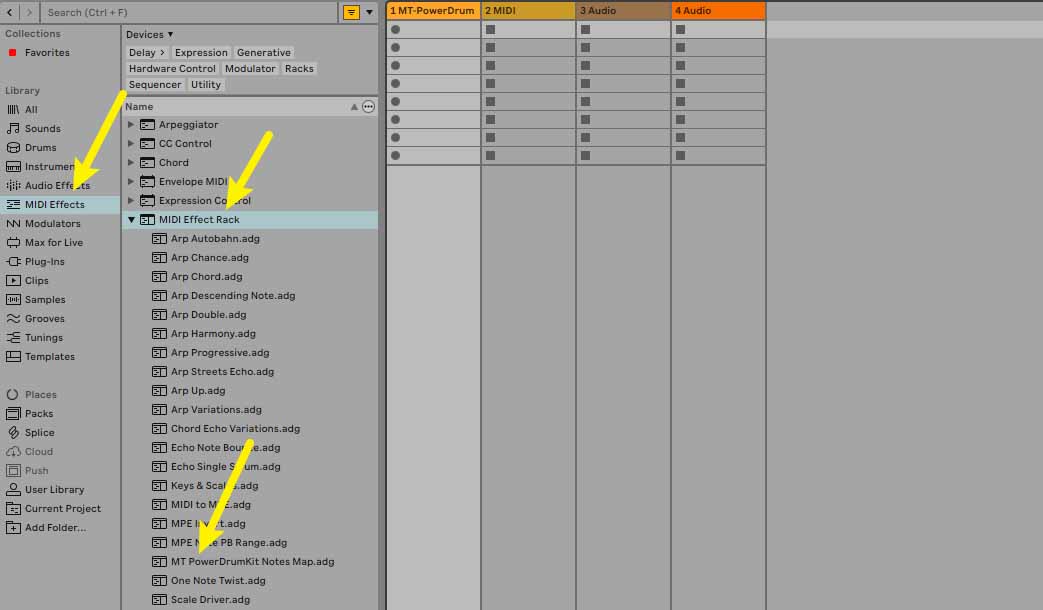
In the Library section navigate to the following location.
Step 5
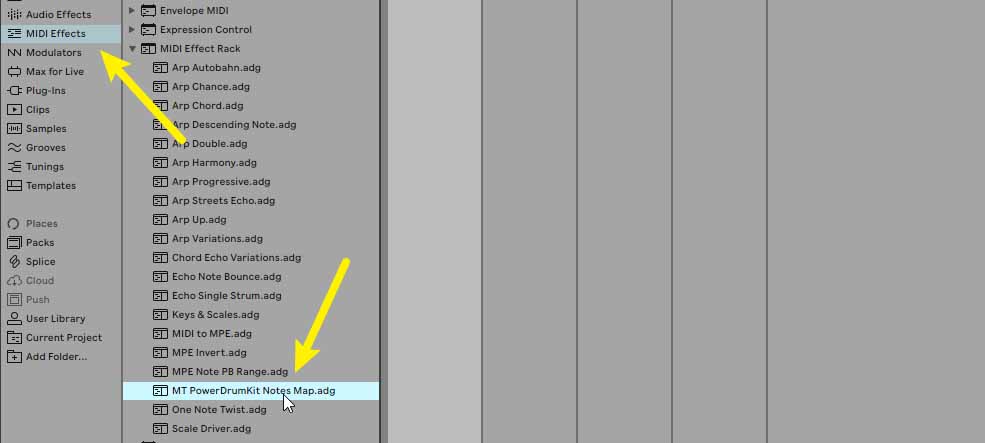
The file which you previously moved into the user library folder should now appear here. Double click on it.
Step 6
Double click on the preset twice, so that two of these MIDI Effect Racks are being created, otherwise the DAW won't apply the note names (probably due to a bug). Afterwars you can delete one of them.
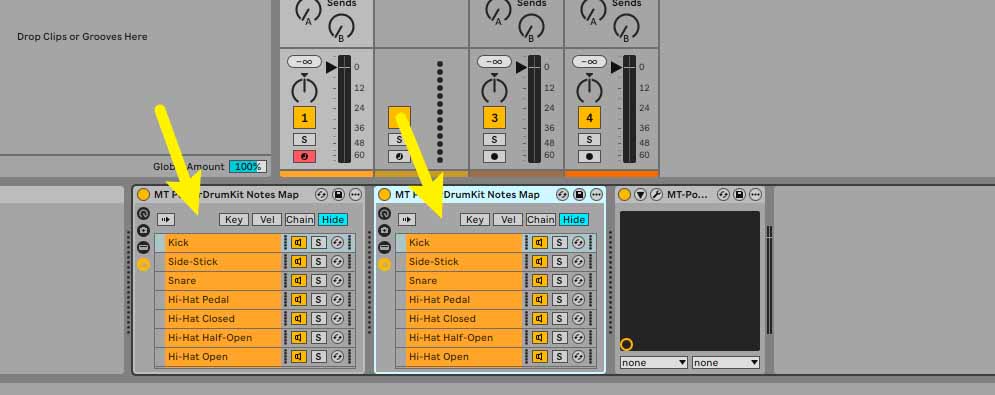
Step 7
That's it! Whenever you open a MIDI groove on that particular track, the note names will display next to the piano roll.

Enjoy enhanced and more convenient drum programming!
Thanks to Rebekah Simpson for providing the drum map preset!