







FL-Studio - How to load a Drum Map with MIDI note names (pitch names)
Why even use a drum map?
When you open a MIDI event with the MIDI editor in FL-Studio, you will see the piano roll on the left side. The C keys and their octaves are all labeled, which is sufficient if you just have to deal with melodic MIDI events. But as soon as you want to edit or create drum grooves, only seeing the keys and notes is not very convenient. That is why some DAWs like Studio One support loading up external drum maps which will display every single drum name like Kick, Snare, Hi-Hat etc... instead of the piano roll (see right image).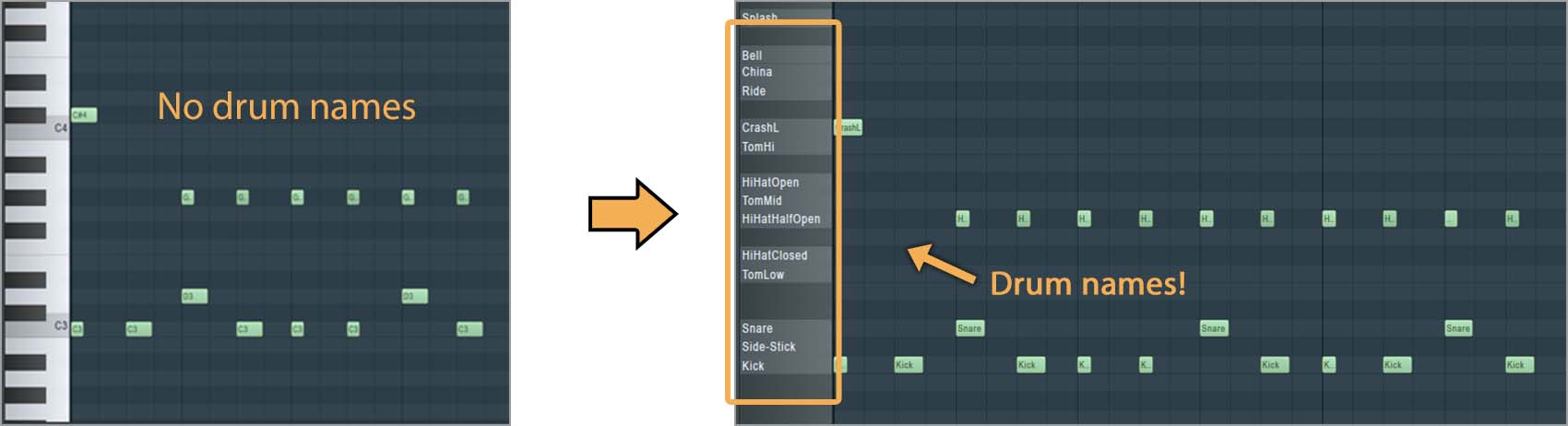
This obviously makes drum programming much more convenient since you are going to actually see which drums you are about to draw into the MIDI editor. The guessing game will be over.
If you're using the VST3 version of the plugin, the drum names are automatically displayed in the piano roll or drum editor of FL-Studio. You don't need to download and install an extra file for that.
The following instructions are only relevant if you have to use the VST2 or AU version of the plugin for some reason.